GemRaid - Free spins, coins, and gift codes that actually work.GemRaid - Free spins, coins, and gift codes that actually work.GemRaid - Free spins, coins, and gift codes that actually work.GemRaid - Free spins, coins, and gift codes that actually work.
Roblox natively restricts your avatar to strict category caps — such as one hair accessory, three hats, and one back item — through its front-end Avatar Editor menu. However, you can bypass these category blocks natively without installing any software by using the web editor's Advanced menu and pasting individual item Asset IDs directly into empty slots.
For a faster, one-click experience on desktop, browser extensions like BTRoblox strip these category restrictions automatically. On mobile devices, you can achieve the same result by accessing the Roblox website through a browser configured to 'Request Desktop Website.'
Tags
Written by Alex Rider
Hey, I'm Alex—GemRaid's Roblox guy. I write no-nonsense field-tested guides and listicles to help you play smarter, cut the fluff, and get more out of every game.
You might also like
More guides and updates to help you stay ahead.
Hard Limit Alert: No browser trick or extension can bypass Roblox's backend server limit of 10 total equipped accessories. While you can wear 10 hairs or 10 hats simultaneously, your total accessory count across all categories cannot exceed 10 items.
Understanding Roblox avatar limits: Front-end UI vs. Back-end API
To troubleshoot avatar glitches or saved outfit failures, it helps to understand how Roblox enforces its customization rules. The system relies on two separate layers: the client-side user interface and the backend web server API.
The Client-Side User Interface Cap
When you customize your avatar inside the standard Roblox app or default web editor, the menu enforces category-specific caps. Selecting a second item in the same category — like equipping a second hair or a fourth hat — automatically unequips your previously selected item. This interface barrier exists to keep the default user experience simple and prevent accidental visual stacking.
The Back-End API Global Cap
Behind the front-end menu, Roblox's web API operates under a broader rule: a hard global limit of 10 accessories per avatar, regardless of category. The server does not care if all 10 items belong to the hair category or the shoulder category — as long as the total payload does not exceed 10 items, the server approves the character update.
Roblox maintains this 10-item cap to protect memory budgets and rendering performance across the global network. Every accessory adds mesh geometry, texture maps, and physics nodes to live game instances. Capping accessories at 10 prevents lag and crash spikes, particularly on lower-end mobile devices.
Method 1: The Native 'Advanced' Asset ID Method (PC & Mac)
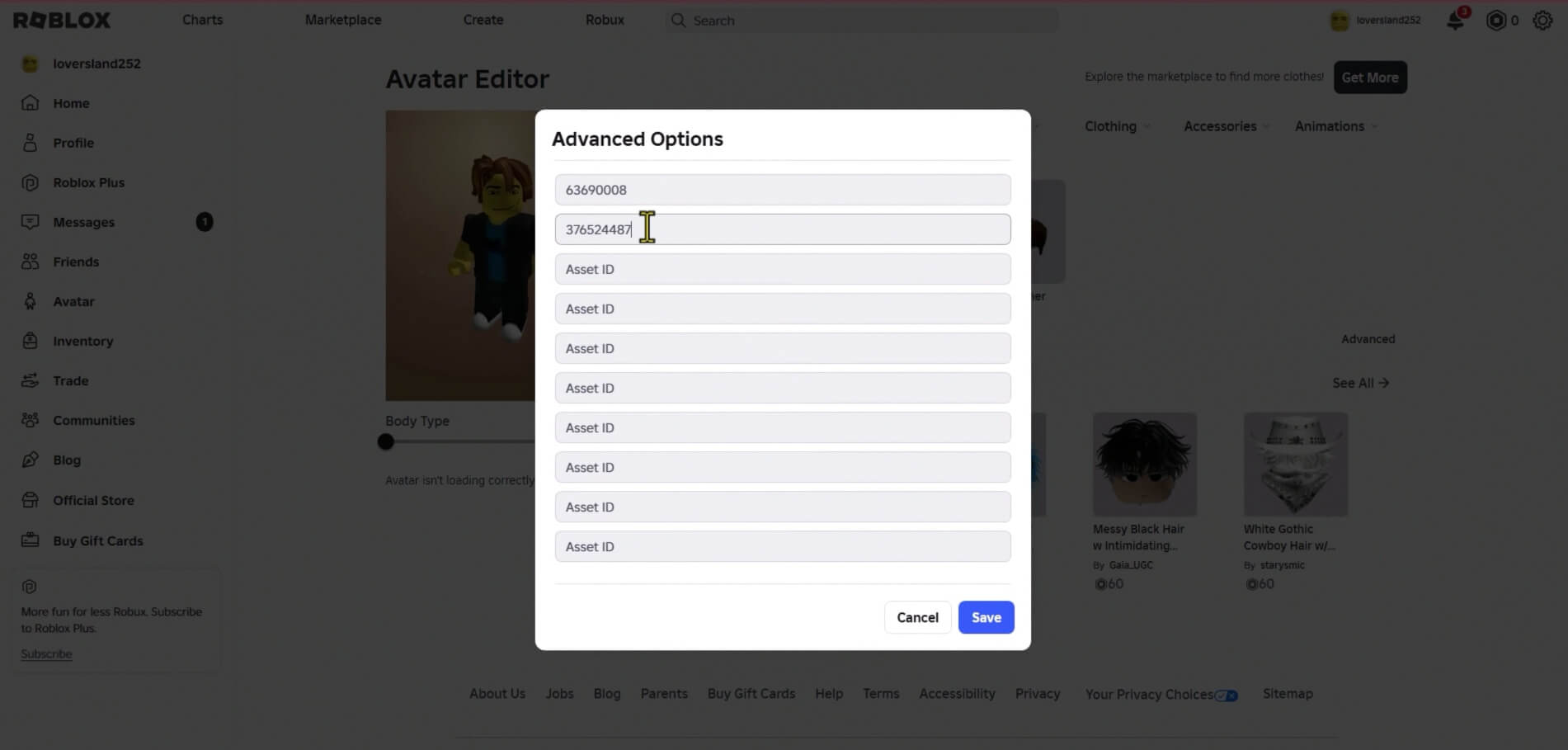
The cleanest way to bypass category limits is by using Roblox's built-in Advanced menu. This feature is native to the Roblox desktop website and requires no downloads or browser extensions.
Step-by-Step Instructions
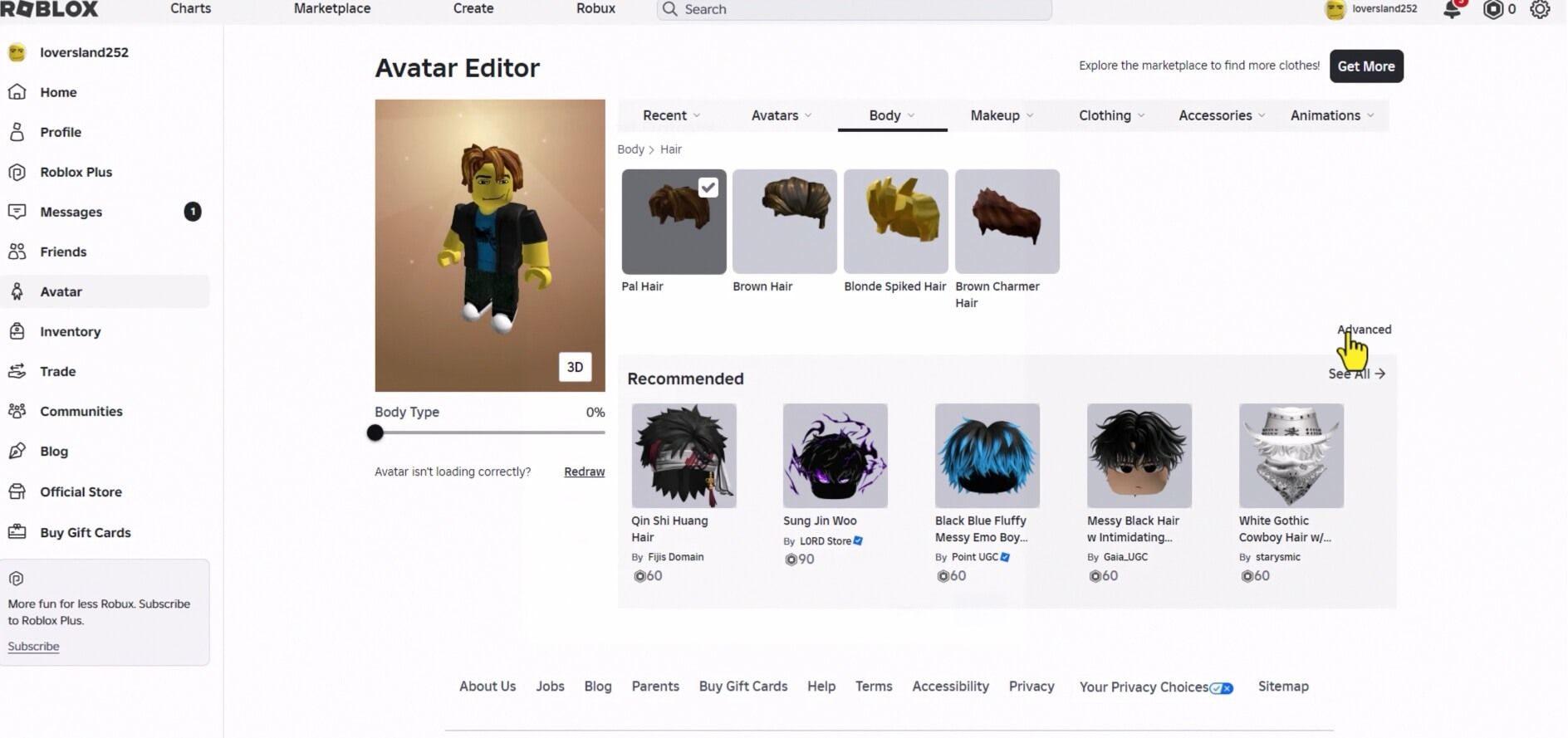
Open your web browser on PC or Mac, log into roblox.com, and navigate to the Avatar Editor page.
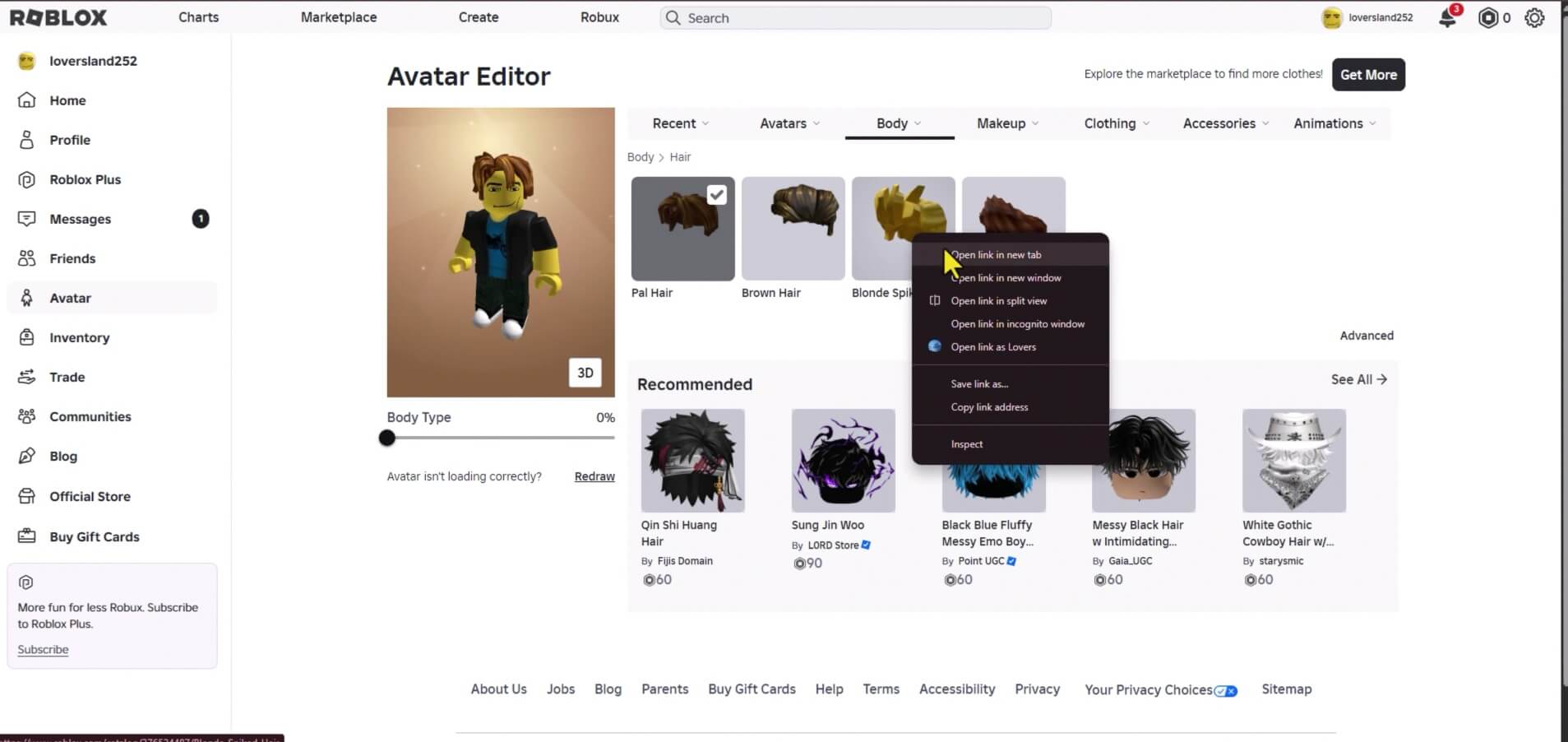
Select an item to equip, then right-click on a second item and click open link in new tab.
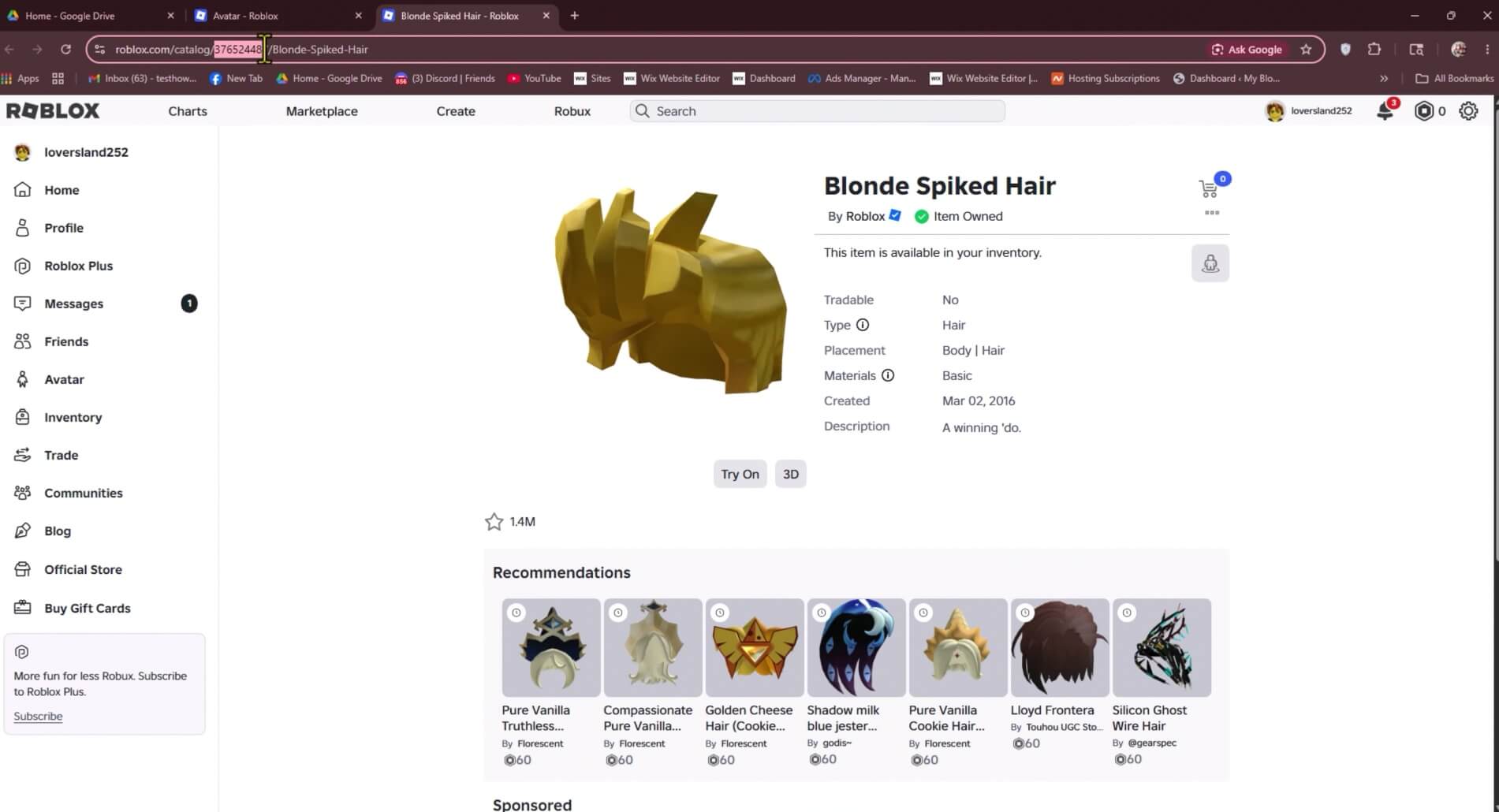
Copy the numeric Asset ID from the item's URL bar (for example, in roblox.com/catalog/123456789/Item-Name, the Asset ID is 123456789).
Return to your Avatar Editor tab, hover over Accessories, and select the category of your item (such as Hair or Hat).
Scroll to the bottom right of the accessory list and click the Advanced link.
Paste your copied Asset IDs into the empty Asset ID input fields.
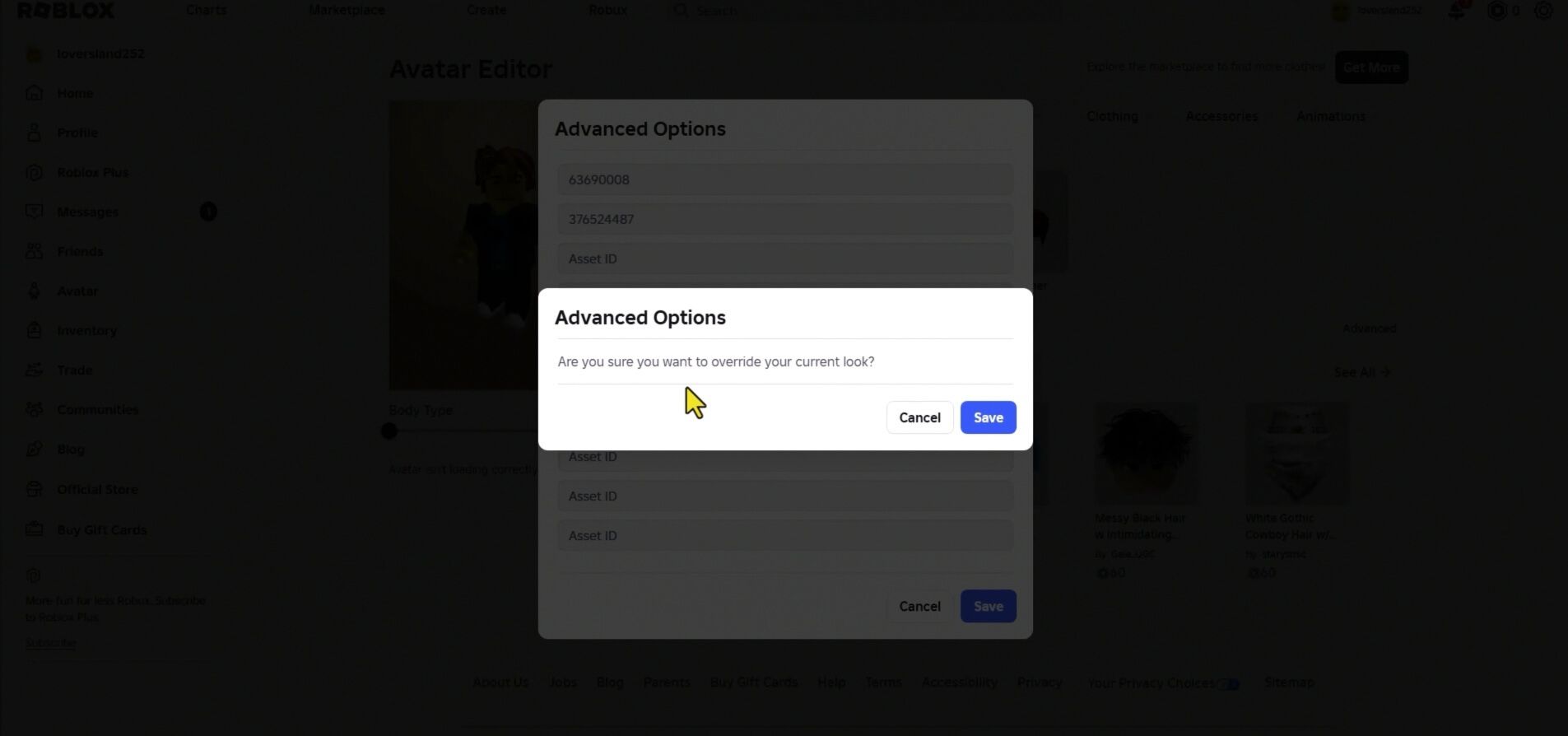
Click Save, then confirm the prompt asking to override your current outfit.
This method allows you to equip up to 10 items in a single category — such as stacking multiple hair meshes for complex hair combinations — as long as your total equipped accessories stay at or below 10.
Method 2: Using Browser Extensions for One-Click Equipping
If you frequently adjust outfits, manually copying Asset IDs can become tedious. Third-party browser extensions modify the Roblox website interface to remove category locks automatically, letting you equip items with a single click.
Top Recommended Extensions
BTRoblox (Better Roblox): A widely trusted, open-source browser extension that removes category limits in the avatar editor, adds item preview tools, and cleans up site navigation.
RoSeal: An enhanced Roblox browser utility that offers advanced outfit management, quick-equip toggles, and performance statistics.
⚠️
Security Notice
Only download browser extensions directly from official web stores (Chrome Web Store, Firefox Add-ons) or verified open-source repositories. Malicious knockoffs — such as fake SearchBlox or RoTracker extensions — contain session-hijacking scripts designed to steal your .ROBLOSECURITY token and compromise your account.
Method 3: How to Stack Avatar Items on Mobile (iOS & Android)
The Roblox mobile app completely hides the Advanced button and enforces strict one-item category locks. However, you can bypass these restrictions on mobile by accessing Roblox through a web browser instead of the mobile app.
Mobile Browser Workaround
Open Safari on iOS or Chrome on Android and go to roblox.com (do not switch to the Roblox app when prompted).
Log into your account and open your browser settings menu.
Select Request Desktop Website (or Desktop Site in Chrome).
Navigate to the Avatar Editor page.
Go to Accessories, tap the Advanced button at the bottom right, and paste your item Asset IDs directly into the fields.
Tap Save to apply the outfit to your profile.
Android users can also install extension-supporting browsers — such as Kiwi Browser — to run BTRoblox on mobile devices.
Also read
Method 4: In-Game Customization via Catalog Avatar Creator
Another popular workflow involves using community experience games like Catalog Avatar Creator (CAC) to design and test outfits in real time.
How Local Rendering Works
Catalog Avatar Creator renders accessories locally inside the game engine, allowing you to equip dozens of accessories, layer clothes, and test complex scaling without hitting web editor caps while inside the experience.
The Export Bottleneck
When you attempt to save your CAC creation directly to your main Roblox account, CAC sends a save request to Roblox's web API. At that moment, the backend 10-item accessory cap applies. If your outfit contains 14 accessories, CAC will prompt you to select and remove 4 items before the save can commit.
Advanced Method for Creators: Merging 3D UGC Meshes in Blender
For UGC 3D creators, the ultimate way to bypass the 10-item cap is by merging multiple accessory models into a single asset before publishing them to the Roblox Marketplace.
By importing multiple 3D models — such as three hat meshes, a pair of glasses, and a mask — into 3D software like Blender, creators can join the geometries into a single mesh object, optimize the texture atlas, and upload the combined creation as one single UGC accessory.
When a player equips this combined UGC item, it displays five visual accessories while consuming only 1 slot of their 10-item global allowance. Creators must still ensure the combined asset adheres to Roblox UGC triangle count and texture memory guidelines.
Troubleshooting Common Avatar Errors
Error/Issue
Root Cause
Solution
'Character Update Failed' or Warning Error
Attempting to equip an 11th accessory, using an invalid/deleted Asset ID, or hitting web API rate limits.
Ensure your total accessory count is 10 or lower. Verify item Asset IDs are active in the Marketplace.
Items Unequip When Joining a Game
The game experience uses custom scripts (ConformToAvatarRules) that enforce strict avatar compliance upon entering.
Revert to standard category limits for that specific game, or join servers that allow custom UGC setups.
Texture Clipping / Double Head Glitch
Combining multiple hair or hat meshes with dynamic heads causes mesh overlap and geometry collision.
Adjust avatar body scaling sliders in the Avatar Editor or switch to R15 body models.
Cybersecurity Warning: Protecting Your Account
Because bypassing avatar limits is a popular topic, scammers frequently target players looking for quick shortcuts. Protecting your account requires following basic security protocols:
Never paste JavaScript or code snippets into your browser's Inspect Element or Developer Console. Doing so executes scripts that transmit your .ROBLOSECURITY authentication cookie directly to attackers.
Audit your browser extensions regularly and remove any tool that demands unnecessary site permissions.
Ensure Two-Factor Authentication (2FA) is active on your Roblox account via an authenticator app.
Frequently asked questions
Q: Can you wear more than 10 accessories on Roblox?
A: No. Ten accessories is a hard server-side limit enforced by Roblox's web API. The only way to display more visual items is by wearing UGC items that merge multiple accessories into a single mesh asset ID.
Q: How many hairs can you equip at once?
A: You can equip up to 10 hairs simultaneously using the Advanced Asset ID method or a browser extension like BTRoblox, provided your total accessory count across all categories does not exceed 10.
Q: Why do my stacked items disappear when I enter a game?
A: Some games use developer scripts like ConformToAvatarRules to strip non-standard avatar setups upon server entry to maintain game performance and reduce memory usage.
Q: Will you get banned for using the Advanced method or BTRoblox?
A: No. The Advanced button is an official Roblox feature, and BTRoblox simply automates web interface clicks. Neither modifies game client code or violates Roblox Terms of Service.
Q: Can you bypass avatar item limits on the Roblox mobile app?
A: Not directly inside the app. You must use a mobile browser like Safari or Chrome in 'Request Desktop Website' mode to access the web Avatar Editor's Advanced menu.