GemRaid - Free spins, coins, and gift codes that actually work.GemRaid - Free spins, coins, and gift codes that actually work.GemRaid - Free spins, coins, and gift codes that actually work.GemRaid - Free spins, coins, and gift codes that actually work.
How to Private Chat on Roblox (PC, Mobile, and Console)
Learn how to private chat on Roblox across PC, mobile, and console. Simple whisper commands, 2026 age verification rules, Voice Chat, and troubleshooting tips.
Roblox chat defaults to public. Everything you type in a live server gets broadcast to the whole lobby — which is fine for callouts, but useless if you actually want to talk to one person without the rest of the server reading over your shoulder. That’s what whispering is for.
Here’s everything that actually matters: how to whisper, how to get out of a whisper, why console works completely differently, how the age-verification and Trusted Friends system changed private messaging in 2025–2026, and what to do when none of it works.
Whispering on PC: The Commands
Tags
Written by Alex Rider
Hey, I'm Alex—GemRaid's Roblox guy. I write no-nonsense field-tested guides and listicles to help you play smarter, cut the fluff, and get more out of every game.
You might also like
More guides and updates to help you stay ahead.
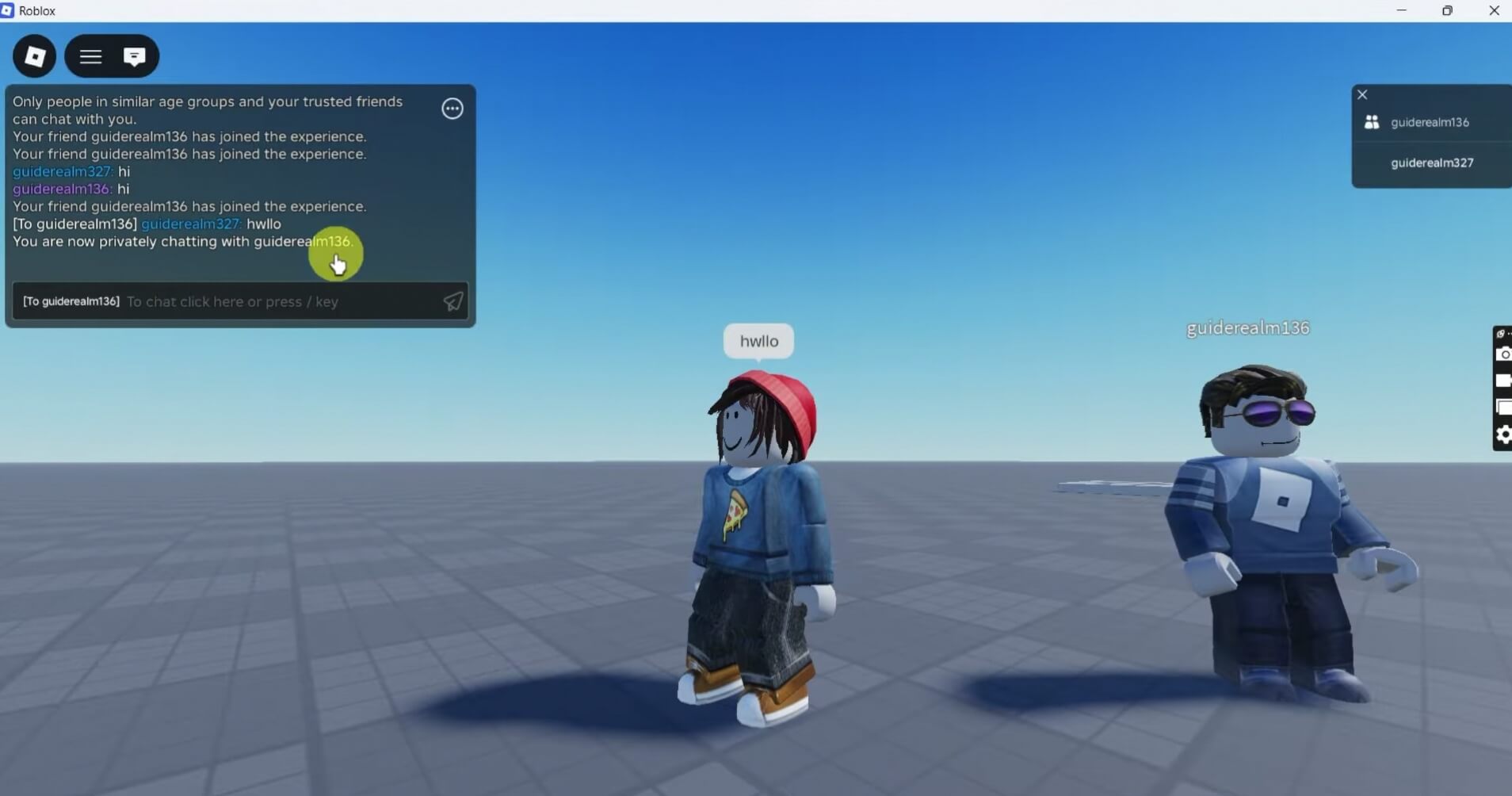
Whispering is peer-to-peer — you and one other player, invisible to everyone else in the server. On PC, it runs on a command-line system that’s been in the chat engine for years. Open the chat window (press / or click the chat bubble, top-left), then type one of these:
Command
Syntax
Notes
/w
/w [Username] [Message]
The one veteran players actually use — fastest to type.
/whisper
/whisper [Username] [Message]
Same thing, spelled out.
/msg
/msg [Username] [Message]
Alternate alias, identical function.
/tell
/tell [Username] [Message]
Legacy command, still works.
One thing that trips people up constantly: this needs the player’s actual username, not their display name. Display names aren’t unique — if two people in the server are both showing as “Alex,” the game can’t tell them apart, and your message can land with the wrong person. Always whisper the username.
Once it’s live, the chat box shows [To Username] in purple text. That purple tag is your only confirmation you’re actually in a private channel — no purple, no privacy. And it only works one-way unless the other person whispers back; if they just type into normal chat, their reply goes public.
Shortcuts that save you time: - Click any username in the chat log to auto-populate /w [Username] instantly. - Press \ to pop open the whisper selection menu. - Type the first few letters of a username and hit Tab to autocomplete it.
Whispering on Mobile
No command line convenience here — mobile leans entirely on tapping. Open the chat bubble, scroll to find your target’s name in the log, and tap it. That drops you straight into a private channel with them. If they haven’t said anything in public chat yet, you’re stuck typing /w [Username] manually on a touchscreen keyboard, which is exactly as error-prone as it sounds — autocorrect will happily mangle a username mid-type.
Getting Out of a Whisper
On desktop, this one’s easy: with the input field empty, hit Backspace. That clears the purple tag and drops you back to global chat. You can also type /all or /general to force it.
Mobile used to be a nightmare here. Older builds had no keyboard equivalent to Backspace-to-exit, so players got permanently locked in a whisper channel for the rest of their session — no way out, no way to talk to the server. Roblox fixed it: now you just tap the purple [To Username] tag directly in the chat bar, and it drops the private channel. If you’re on an older version of the app and this doesn’t work, update it.
Console Chat Works Completely Differently
If you’re playing on Xbox or PlayStation, forget everything above — the /w command doesn’t function on console at all. This isn’t a Roblox limitation, it’s Microsoft and Sony’s child-safety and network-compliance rules for their platforms. Typing full sentences with a gamepad is also just impractical to moderate at scale, so the standard text chat window is largely hidden or disabled outright.
Instead, console relies on Quick Words — pre-approved, filtered phrases you select from a menu rather than type. You’ll see a small lightning bolt icon next to them in chat, marking them as menu-selected rather than typed. For real private conversation on console, you’re meant to use your platform’s native voice features — Xbox Party Chat or PlayStation voice parties — which run entirely outside Roblox’s own systems.
Platforms
Input
What you get
PC/Mac
Keyboard + mouse
Mobile
Touchscreen
Console (Xbox/PS)
Gamepad
Native chat hidden/disabled; Quick words only, no /w support
Out-of-Game Messaging: The Chat Tab
Whispers only exist inside a live server — once it closes, the conversation’s gone. For anything persistent, Roblox has a separate messaging system. What used to be called “Party” is now the Chat tab for anyone age nine and up. Find it on your home screen (mobile) or the gray chat box in the lower-right corner of the browser (desktop).
From there you can DM a friend directly or build a group chat with up to five other people (six total). To start a group: hit the “+” icon in the Chat tab, add up to five friends, and hit Create. You can rename the group, add people later, or leave whenever via group settings.
One consent detail worth knowing: depending on your age and region, getting added to a group chat doesn’t drop you straight into the conversation anymore. You’ll get a prompt showing the group’s name and members first, and you have to hit Accept before you see any of the messages. Reject it, or block the person adding you, if it’s spam.
Age Verification and Trusted Friends: The Big Shift
This is the part that actually changed the rules for everyone. Roblox rolled out mandatory age estimation and a new Trusted Friends tier through 2025 and 2026, and it now gates most of the meaningful private communication features on the platform.
To unlock anything beyond basic filtered chat, you need to verify your age — either a facial age scan or a photo of a government ID. That verification locks you into an age bracket, and the bracket determines what you can do. This exists specifically to stop adults from lying about their age to reach minors.
Trusted Friends is a step above a regular friend — both people have to explicitly opt in to the upgrade, and either side can revoke it at any time, instantly dropping privileges back to standard-friend level. Here’s how the brackets break down:
Can’t use Trusted Friends for out-of-game messaging at all — locked to filtered in-game chat
9–12
In-game chat with moderate filters; DMs need parental consent
Can chat with Trusted Friends across age brackets, but filters stay on
13–17 (Teens)
Full control of privacy settings; standard filtered chat
Unfiltered text/group chat, Voice Chat — but can’t become Trusted Friends with an adult (18+) without in-person verification like a QR code scan
18+ (Adults)
Full platform access under standard ToS
Unfiltered text, Voice Chat, real-time Team Create in Studio with other verified adults
The upshot: a 14-year-old and a 10-year-old who know each other in real life can be Trusted Friends and chat, filtered for the younger one’s protection — but a random adult can’t just add a minor and start messaging them privately. That path is closed.
Voice Chat
Voice Chat is the closest thing to standing next to someone and talking — proximity-based audio tied to your avatar’s position in the game. It’s locked to age 13+ and requires the same ID or facial verification as everything else; phone number verification used to be enough, but that’s been phased out for being too easy to spoof.
In-game, you’ll see a mic icon above your avatar and pinned top-left. Click it to toggle your mic — red slash means muted, green pulse means you’re live. A red dot on screen means the platform is actively recording the audio stream, which it does for safety monitoring. You can mute individual players locally (click their speaker icon or use the Esc menu) without blocking them outright.
Also read
Moderation: What Gets Filtered and Why
Every message on Roblox — public, whispered, or DM’d — runs through a real-time filter. The younger the recipient’s verified age bracket, the harder it filters: profanity, discriminatory language, and anything that looks like an attempt to share a phone number, address, or a push to move the conversation to Discord or Snapchat.
Older versions of the filter just replaced flagged text with hash marks (#####), which mangled the whole message. Newer versions try to auto-rephrase mildly toxic language into something civil instead of just blanking it out.
Worth knowing: Roblox retains chat and voice data for safety purposes, including whispers, and voice may get run through speech-to-text for moderation and product training. You can opt out of the product-improvement use in your settings, but the safety-retention piece isn’t optional.
If someone’s a problem, you have two real tools: - Block — kills the connection completely. They’re removed as a friend/follower and can’t DM you, invite you to games, or whisper you. No notification is sent to them. - Report — use the in-experience report tool (the flag icon in the Esc menu), not a report through their web profile. The in-game tool bundles the actual chat log, server data, and timestamps with your report, which is what moderators need to act on it. Reporting via the profile page alone usually doesn’t carry enough evidence to result in action.
Roblox also has dedicated reporting pathways tied to specific laws depending on your region — the Australian Online Safety Act, UK Online Safety Act, EU Digital Services Act, Brazil’s ECA, and California’s AB 1394. If you’re dealing with something serious, these get you a more targeted review path.
Parental Controls
If you’re a parent managing a kid’s account, you need your own verified Roblox account first (ID or credit card verification), then you link it to your child’s account. That link gives you a dashboard — no need to grab their device or their password to change settings.
From there you control: - Whether in-game chat and out-of-game DMs are on or off, independently of each other. - Who can whisper or message your kid — anyone, friends only, or no one. - Daily screen time limits, with automatic lockout when the time’s up. - Robux spending alerts, sent to your email in real time.
If you block someone on your child’s behalf, the kid can’t unblock them or re-friend them without your password. Control gradually shifts to the teen as they age up, but you keep override access on core safety settings until they’re a legal adult.
For Developers: How Whispering Actually Works Under the Hood
If you’re building in Roblox Studio, whispering runs through TextChatService, which replaced the old legacy chat system that was riddled with exploits. When someone runs /w, the engine spins up a dedicated TextChannel — for example, a whisper between UserId 2276836 and UserId 505306092 gets named RBXWhisper:2276836_505306092. Only those two TextSource objects are bound to that channel, so nobody else on the server can see it. The purple [To Username] tag comes from the engine manipulating TextChatMessage.PrefixText.
If your game has a custom chat UI and the default one’s disabled, /w stops working out of the box — you’ll need to hook into TextChatService.Chatted yourself, parse for whisper syntax, and route it manually. And you’re on the hook for running any custom text through Roblox’s filtering API yourself — skip that step and you’re risking your game getting pulled by Trust & Safety.
Two known quirks worth flagging: the engine sometimes matches whispers by Display Name instead of Username, which breaks the moment two players share a display name. And there’s no built-in toggle to disable whispering — if you want to kill it (say, to stop secret teaming in a free-for-all mode), you have to write a script that detects and deletes RBXWhisper channels the moment they’re created, or build your own custom command system from scratch like some games have done.
Troubleshooting: Why Your Whisper Isn’t Working
What’s happening
Likely cause
Fix
Command does nothing, no error
Target disconnected/reconnected and the server cache didn’t clear
Rejoin the server
Whisper silently fails
Recipient’s privacy setting is “No one” or “Friends” and you’re not on their list
Nothing to fix on your end — respect their setting
Instant failure
One of you has blocked the other
Can’t be worked around
/w just posts publicly
The game’s developer disabled native whisper
Check if the game has its own custom private-chat command
Can’t open chat at all
Keyboard layout issue on international setups
Use \ instead, or switch OS keyboard to English (US)
Before you assume something’s broken, check that you’ve actually completed age verification — chat features stay locked platform-wide until that’s done. If your account’s verified and your privacy settings allow it, the issue is almost always either the specific server’s custom scripting or a stale connection — rejoining usually clears it.